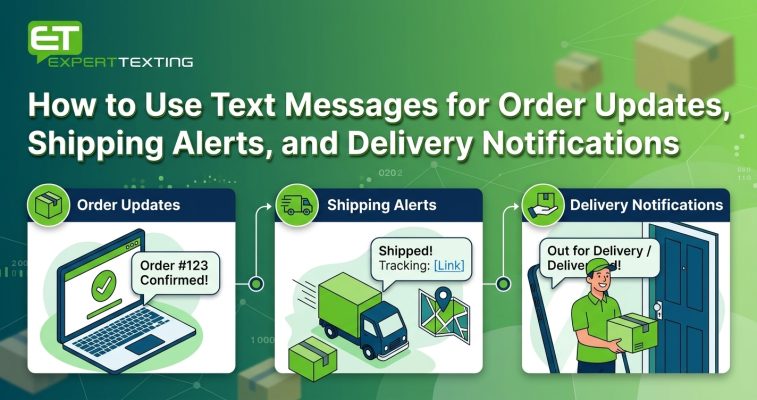
How to Use Text Messages for Order Updates, Shipping Alerts, and Delivery Notifications
“Where is my order?” is one of the most common questions any online store hears. Every time a customer asks, you spend time answering, and they spend time worrying.
At Expert Texting, we help businesses answer that question before it gets asked. A short text at the right moment tells customers their order is confirmed, shipped, nearby, or delivered, and that single habit cuts down support tickets and builds trust.
This guide explains how SMS order notifications work, which messages to send at each stage, and gives you templates you can copy today.
What Are SMS Order Notifications?
SMS order notifications are short text messages that tell a customer what is happening with their purchase. They cover the full trip, from the moment someone checks out to the moment the package lands on their doorstep.
Unlike marketing texts, these messages are tied to something the customer already did. They bought something, so they want to know about it. That is why order status text messages tend to get read quickly and rarely annoy anyone.
A basic setup includes four messages: order confirmation, shipping alert, out-for-delivery notice, and delivery confirmation. You can add more as you grow, and the features page shows what a texting platform can automate for you.
Why Customers Expect Order Updates by Text
Most shoppers check their phone before they check their email. A text shows up on the lock screen, takes five seconds to read, and needs no login.
Email still has a place, since receipts and long details fit better there. But email updates often land in promotions folders or get buried. A text with a tracking link is easier to find when someone wonders where their package is.
Here is what shoppers get from SMS delivery notifications:
- Peace of mind. They know the order went through.
- Control. They can plan to be home for a delivery.
- Fewer surprises. Delays reach them before frustration builds.
- Easy tracking. One tap opens the carrier page.
For you, the payoff is fewer “where is my order” emails, fewer missed deliveries, and customers who feel looked after.
The Order Journey: Which Texts to Send and When
Not every step needs a message. Send updates at the moments that matter, and skip the ones that only add noise.
| Order Stage | Message | When to Send | Goal |
| Order placed | Order confirmation | Right after checkout | Confirm the purchase went through |
| Payment issue | Payment failed notice | Immediately | Recover the sale |
| Packed and shipped | Shipping alert with tracking link | When the carrier scans it | Set delivery expectations |
| Delay | Delay notice | As soon as you know | Prevent angry emails |
| Out for delivery | Delivery day alert | Morning of delivery | Help customers be ready |
| Delivered | Delivery confirmation | After the drop off | Close the loop |
| Pickup orders | Ready for pickup notice | When the order is ready | Get it collected |
| After delivery | Review request | A few days later | Collect feedback |
This table is a starting point. A small shop might use only the first, third, and sixth rows. A larger store with several carriers might use all eight.
SMS Order Notification Templates You Can Copy
Good templates are short, name your business, and give one useful detail. Replace the brackets with your own information. Each one includes a way to stop messages, which is a good habit even for service texts.
Order Confirmation
“[Business Name]: Thanks for your order, [First Name]! Order #[Number] is confirmed. We’ll text you when it ships. Reply STOP to opt out.”
Shipping Notification
“[Business Name]: Good news, your order #[Number] has shipped. Track it here: [link]. Estimated delivery: [date]. Reply STOP to opt out.”
Shipping notification text messages work best when the tracking link opens a mobile-friendly page. If the link is long or confusing, customers will ignore it.
Out for Delivery
“[Business Name]: Your order #[Number] is out for delivery today. Track it live: [link]. Reply STOP to opt out.”
Delivered
“[Business Name]: Your order #[Number] was delivered. Something wrong? Reply HELP, and we’ll sort it out. Reply STOP to opt out.”
Delay Notice
“[Business Name]: Your order #[Number] is running a day late because of [reason]. New estimate: [date]. Sorry for the wait. Reply STOP to opt out.”
Be honest about delays. A short, clear apology costs you nothing and saves a lot of angry replies.
Ready for Pickup
“[Business Name]: Your order #[Number] is ready for pickup at [location]. Bring this text or your ID. Open until [time]. Reply STOP to opt out.”
Review Request
“[Business Name]: How did we do with order #[Number]? Tell us in one minute: [link]. Reply STOP to opt out.”
Send this one a few days after delivery, not the same day. Give people time to try what they bought.
How Automated Order Updates Work
Nobody types these messages by hand. Automated order updates run on triggers, which are events in your store that fire a text without any manual work.
Here is the basic flow:
- A customer checks out and opts in to texts.
- Your store or order system records a status change, like “shipped.”
- That change triggers a template in your texting platform.
- The platform fills in the name, order number, and tracking link.
- The customer gets the text within seconds.
Most online store platforms and shipping tools can connect to a texting service. The connection usually works through an integration or an SMS API, which is a bridge that lets two systems share data. If you do not have a developer, a Zapier integration can link your store to your texts without code, and a WordPress SMS plugin covers stores built on WordPress.
Test every trigger before going live. Place a test order, move it through each status, and read every message on your own phone.
Best Practices for SMS Order Notifications
A few habits separate helpful updates from annoying ones.
- Name your business first. Customers should know who is texting in the first few words.
- Keep each message short. One update, one link, one next step.
- Send only what changes. Skip updates that tell the customer nothing new.
- Use real timing. Send the delivery alert in the morning, not at midnight.
- Include the order number. It helps people with several orders in motion.
- Make replies useful. With two-way SMS, customers can reply HELP to reach support.
- Respect quiet hours. Avoid late-night and very early texts unless it is urgent.
Keep Service Texts and Marketing Texts Separate
Order updates should stay about the order. Adding a big sale announcement to a shipping alert can confuse customers and may cause problems with carriers and rules in some regions.
If you want to promote something after delivery, send a separate SMS campaign to customers who agreed to marketing texts. That keeps your order notices clean and trusted.
Consent and Compliance Basics
Even service messages need a clear permission process. Add a checkbox or a short line at checkout that says customers agree to receive order texts, with a note about message frequency and how to opt out.
Keep a record of when and how each customer agreed. Honor STOP replies right away. Rules differ by country and by message type, so check the requirements that apply where you operate, and ask your texting provider if you are unsure.
Getting this right early also protects your delivery rates. When recipients know why they are getting your texts, they are less likely to report them as spam, and carriers are less likely to filter your numbers.
A Simple Example: A Small Online Candle Shop
Picture a small online shop selling handmade candles. The owner ships about forty orders a week and used to spend an hour each day answering “where is my order” emails. This is an illustrative scenario, not a customer case study.
She adds three automated texts: an order confirmation, a shipping alert with a tracking link, and a delivered notice. She also writes a short delay template for busy weeks.
The following month, tracking questions drop sharply because customers can tap the link themselves. During the holiday rush, the delay template lets her warn customers before they ask, and the replies she gets are friendly instead of upset. That hour a day goes back into making candles.
Common Mistakes With SMS Delivery Notifications
Most problems come from rushing the setup. Watch for these.
- No opt-in at checkout. Texting people who never agreed damages trust and risks penalties.
- Missing business name. An unknown sender looks like a scam, especially when the text contains a link.
- Broken tracking links. Test links on a phone before launch.
- Too many messages. Five texts for one package is too many.
- Wrong timing. A “delivered” text that arrives hours late confuses people.
- Ignoring replies. If a customer texts back a problem, someone should answer.
- Never reviewing results. Templates need small fixes over time.
How to Measure Whether Your Updates Are Working
You do not need a complicated dashboard. A few simple numbers tell you if your order notifications are doing their job.
- Support tickets about order status: Do they drop after launch?
- Delivery failures and missed deliveries: Are fewer packages returned?
- Link clicks: Do customers open the tracking page?
- Opt-out rate: Do people leave after certain messages?
- Reply themes: What do customers ask when they respond?
Compare your numbers before and after launch. If tickets about order status fall and opt-outs stay low, your setup is working. If opt-outs rise after a specific message, rewrite it or send it less often.
For help connecting your store, setting up triggers, and testing templates, Expert Texting can walk you through the process step by step.
Final Thoughts
Customers do not need fancy messages. They need to know their order went through, when it will arrive, and what to do if something goes wrong.
Start with the basics: confirmation, shipping, and delivery. Test them, watch your results, and add more only when you see a real need. Clear, timely SMS order notifications make buying from you feel easy, and easy is what brings people back.
Ready to start? Compare plans on the pricing page, see the steps on the how it works page, or browse our business industry guides for ideas that fit your type of store.
Frequently Asked Questions
1. What are SMS order notifications?
SMS order notifications are text messages that update customers on their purchase, such as order confirmation, shipping, out for delivery, and delivered. They give customers fast, clear information without needing to log in or check email.
2. Which order status text messages should I send first?
Start with three: an order confirmation, a shipping alert with a tracking link, and a delivery confirmation. Add delay notices and pickup alerts once those are working well.
3. Do I need customer permission to send shipping notification text messages?
Yes, collect clear consent at checkout, tell customers what kind of texts to expect, and offer an easy way to opt out. Rules vary by country, so check the requirements where you operate.
4. How do automated order updates connect to my store?
Your store or order system sends a status change to your texting platform, which then sends the matching template. Many platforms connect through built-in integrations, and others use an API.
5. How many texts should one order generate?
Most orders need three to five messages. Send updates only when something meaningful changes, and avoid repeating the same information.
6. Can I add a promotion to a shipping text?
It is better not to. Keep order updates focused on the order and send marketing texts separately to customers who agreed to receive them.
7. What should I do if a package is delayed?
Send a short text as soon as you know. Explain the reason if you can, give a new estimate, and apologize. Customers handle delays well when they hear about them early.
8. How do I know if SMS delivery notifications are working?
Track support tickets about order status, link clicks, missed deliveries, and opt-out rates. If tickets fall and opt-outs stay low, your updates are helping.
About the Author

Sign up for free